The in-app remote can be found in two places in the app:
- Go to the Home tab and select the remote icon in the top left corner, which will bring you to the in-app remote screen.
- Alternatively, go to the Settings tab and select Remote.
The in-app remote allows you to control your TEMPUR-Ergo® smart base directly from your phone using the Sleeptracker-AI® app. It connects either through Bluetooth® or over your local Wi-Fi network to send commands to your bed, such as adjusting the head and foot positions, activating massage features, or turning on underbed lighting.
The in-app remote is able to use either Bluetooth or Wi-Fi to communicate with your bed. While using a Wi-Fi connection, your app first has to send instructions to the Sleeptracker-AI® Cloud, which then communicates with the bed’s processor via Wi-Fi. However, with a Bluetooth connection, the app communicates directly with the bed's processor, which allows for lower latency.
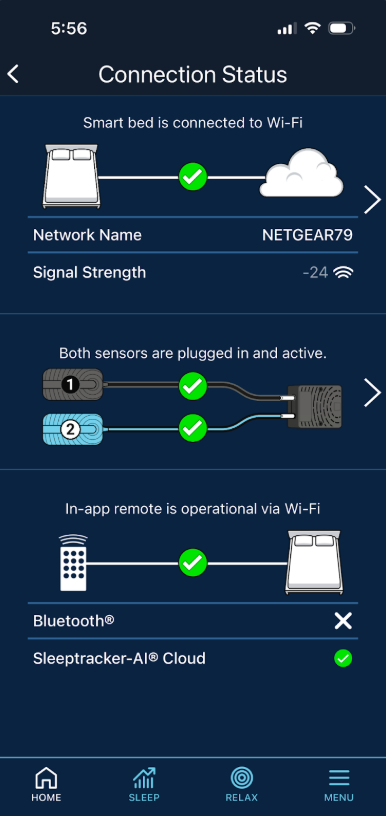
To see which method of communication your in-app remote is currently using, go to the Connection Status page in the app:
- Open the Sleeptracker-AI® app.
- From the Home tab, select the icon in the top right corner
- Select Status, which will take you to the Connection Status page
On the Connection Status page, the third section displays the in-app remote’s connection type. Above the remote-to-bed symbols, the app will tell you whether the in-app remote is operational via Wi-Fi or Bluetooth, depending on your current connection. Below the remote-to-bed symbols, you'll see a green checkmark next to whichever communication method is currently connected.
General Controls
 |
Underbed LED Lighting Turn on/off underbed lighting. This button also turns on/off lighted badge on Smart, Prosmart & Prosmart Air with long press.
|
 |
Favorite Preset Position Reprogrammable preset position
|
 |
QuietMode™ Preset Position Help relieve snoring for you or your partner with the push of a button, gently tilting the mattress position to help reduce snoring.
|
 |
Zero-G® Adjusts your legs to relieve pressure off the lower back.
|
 |
Massage Wave Mode Control This button controls massage intensity on Ergo, but controls massage patterns on Smart.
|
 |
Flat This button lowers head, foot and lumbar on Ergo, Smart, Prosmart & Prosmart Air.
This button also turns off massage on Ergo & Smart, but NOT on Prosmart & Prosmart Air.
|
 |
Foot Position Adjustments Raise and lower the foot of the bed
|
 |
Lumbar Adjustments Use to increase or decrease lumbar support.
|
 |
Head Position Adjustments Raise and lower the head of the bed
|
TEMPUR-Ergo® Smart
 |
TV in Bed Preset Position Brings head and foot into position for viewing TV
|
 |
Foot Zone Massage This button controls low, high, off massage intensity on Smart, but controls low, med, high off massage intensity on Prosmart & Prosmart Air. This button also controls low, med, high (no off) Soundscape mode intensity on Prosmart & Prosmart Air.
|
 |
Head Zone Massage This button controls low, high, off massage intensity on Smart, but controls low, med, high off massage intensity on Prosmart & Prosmart Air.
|
 |
Favorite 1 Preset Reprogrammable preset position 1.
|
 |
Favorite 2 Preset Reprogrammable preset position 2.
|
TEMPUR-Ergo® ProSmart
 |
Wave Form™ massage Cycles massage wave modes when pressed while in massage mode (1 > 2 > 3 > Off). Intensity massage default is low. Once activated, massage will automatically shut off after 30 minutes.
|
 |
SoundScape® mode Default mode is massage mode. Adjusts Head and Foot Massage bass level output through 3 levels when pressed while in SoundScape® mode (Low > Med > High)
|
 |
28 Hz Frequency Setting (Body Relax) Changes current massage frequency output to 28Hz at current intensity levels when pressed while in massage mode. If massage is off, turns on both head/foot massage zones at low intensity, 28Hz frequency, when pressed while in massage mode. These buttons also turn off massage if currently running at the requested frequency.
|
 |
40 Hz Frequency Setting (Mind Relax) Changes current massage frequency output to 40Hz at current intensity levels when pressed while in massage mode. If massage is off, turns on both head/foot massage zones at low intensity, 40Hz frequency, when pressed while in massage mode. These buttons also turn off massage if currently running at the requested frequency.
|
TEMPUR-Ergo® ProSmart Air (ActiveBreeze)
 |
Left / Right cooling fan Controls the cooling level of the left or right side.
|
 |
Left / Right bed warming Controls the warming level of the left or right side.
|
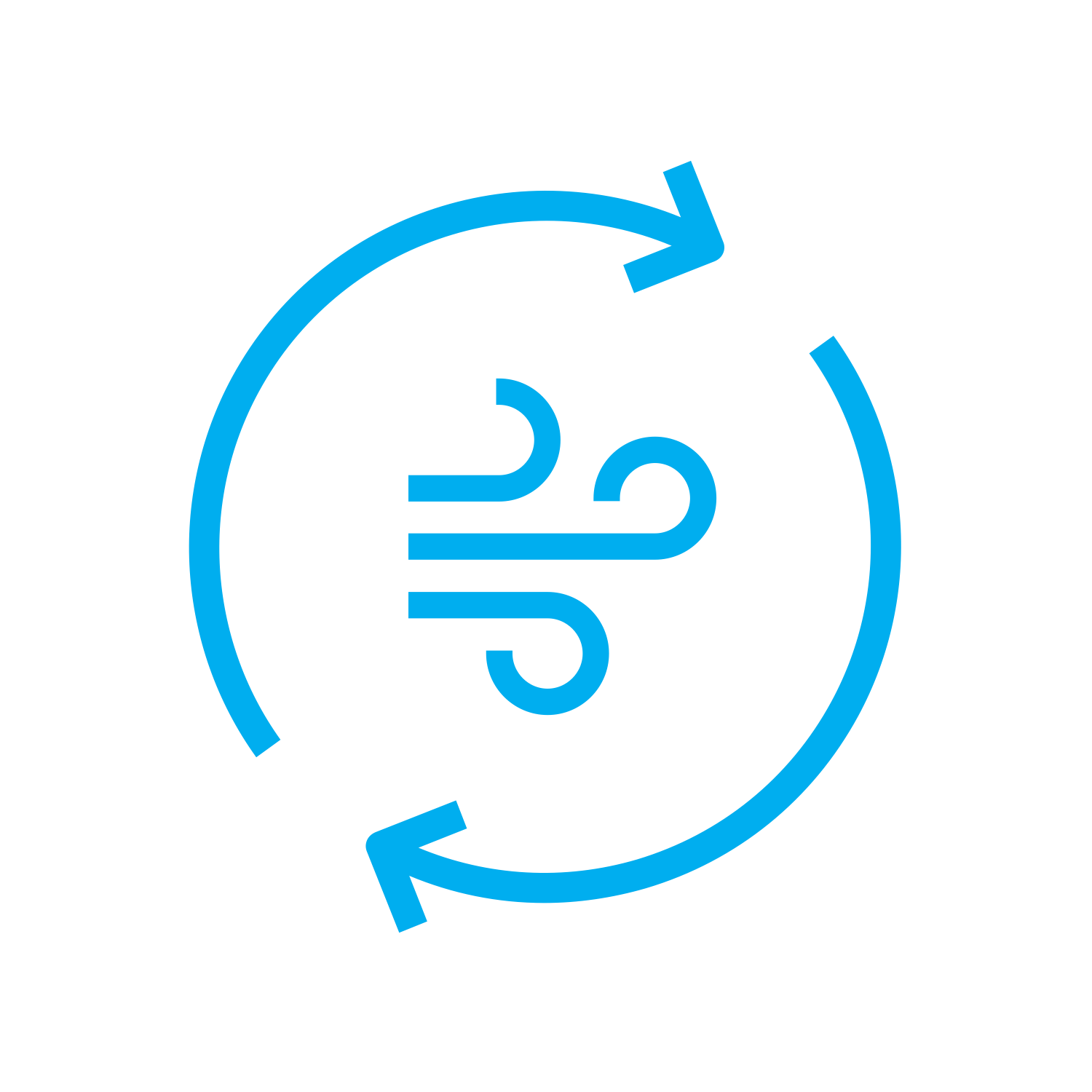 |
SYNC Fans Cooling Controls the cooling level of both sides together.
|
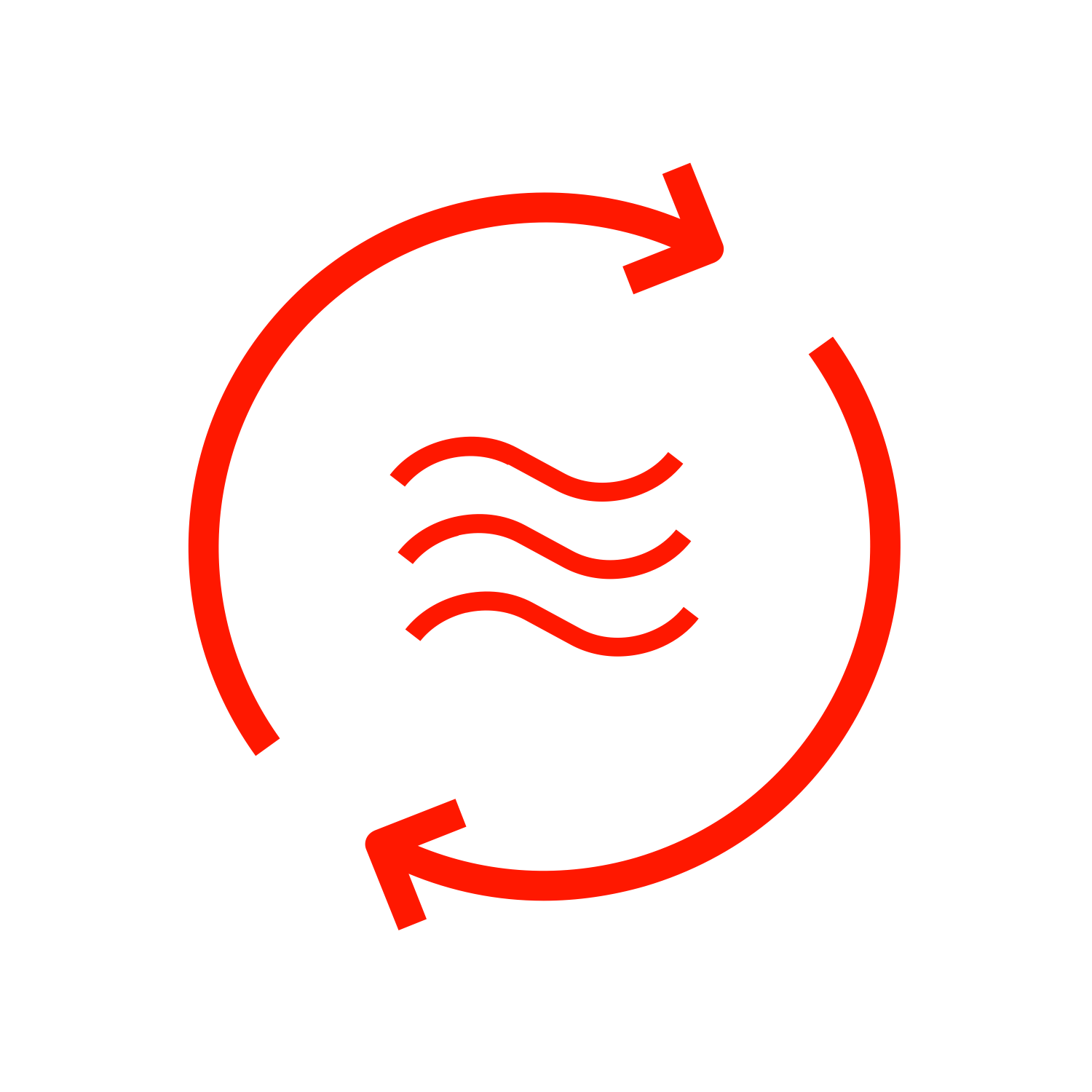 |
SYNC Bed Warming Controls the warming level of both sides together.
|
The in-app remote allows you to control your adjustable base directly from the Sleeptracker-AI® mobile app. If the in-app remote is not responding or behaving unexpectedly, follow the steps below to resolve the issue.
- Note: if your physical remote is also not working properly, this may indicate an issue with the Control Box component or your base's power supply, rather than an issue with the Sleeptracker-AI system. In this case, please contact Tempur's power base support team.
In-App Remote Troubleshooting Steps:
Step 1: Check Wireless Connectivity
Make sure your device is properly connected:
- Open the Sleeptracker-AI app
- From the Home tab, select the icon in the top right corner
- Select Status
- Verify you have a green checkmark in the top section, indicating that the bed has a good Wi-Fi connection to the Cloud.
- If the Smart Bed is disconnected from Wi-Fi, review the Wi-Fi Assistance article.
- Verify you have a green checkmark in the third section between the remote symbol and the bed
- Above this section you should see text that indicates the in-app remote is operational via either Wi-Fi or Bluetooth (or both).
- You should also see a green checkmark below, next to Bluetooth® or Sleeptracker-AI® Cloud (or both).
- If you don't see a green checkmark next to Bluetooth®, that's okay. Bluetooth is not required for in-app remote functionality, but it does speed up the connection if Bluetooth is enabled.
Step 2: Ensure Base is properly wired
Ensure that your base is wired correctly by going to Settings > My Smart Bed > Setup > Verify Configuration > Next.
If you encounter any errors, tap Troubleshoot Configuration > View Setup Guide, and check to see if your bed's components are plugged in properly.
Step 3: Power-Cycle the Bed
Power-cycling (rebooting) the adjustable base can resolve connection issues:
- Unplug the bed from the power outlet
- Wait 60 seconds
- Plug it back in
- Allow a few minutes for reconnection
If you have a Split Base, please power-cycle both sides of the bed at the same time.
Step 4: Reset the Control Box
Reset your base's Control Box to its factory settings. You can do so by pressing the Flat and Zero-G buttons simultaneously for 5 seconds on the physical remote. The remote's backlight will flash twice to indicate that the original pre-set positions have been restored.
If you have a Split Base, repeat this step with the physical remote for the other side of the bed.
Once complete, reopen the app and test the in-app remote.
Step 5: Update Control Box Firmware
Check for Control Box firmware updates in the Sleeptracker-AI app by going to Settings > My Smart Bed > Firmware Update. Be sure to do this step while being close to your bed with your phone.
Once complete, reopen the app and test the in-app remote.